Timelapse
Viseron can save still frames captured from the recorded stream (aka the main stream, not the substream).
The frames can be browsed and played back on the Timelapse page, and rendered to an MP4 video to download.
Timelapse is disabled by default. It is enabled by adding timelapse to the storage component.
Configuration
Frames are stored in tiers, just like recordings and snapshots.
Each tier has an interval that decides how many frames it keeps.
storage:
  timelapse:
    tiers:
      - path: /config/timelapse
        interval:
          minutes: 1
        max_age:
          days: 7
      - path: /mnt/nas/timelapse
        interval:
          minutes: 15
        max_age:
          days: 365
The example above keeps one frame per minute for a week. When frames are moved to the second tier, only one frame per 15 minutes is kept, for a year.
Frames are stored in <path>/timelapse/<camera_identifier>/ as JPEG images named after the time they were taken.
Frames are small, but a camera produces 17 280 of them a day when no interval is set.
Use interval on the first tier to keep the number of files down.
Interval
When a frame is added to a tier, it is deleted if the tier already has a frame from the same camera that was taken within interval before it.
If interval is not set, every frame is kept.
Since the interval is checked each time a frame enters a tier, you can keep a dense timelapse for recent days and a sparse one for the long term by increasing the interval on each tier.
Per camera configuration
A camera can use its own timelapse tiers by adding timelapse to the storage option of the camera.
The camera tiers replace the tiers of the storage component for that camera.
They are only used when timelapse is also configured in the storage component.
ffmpeg:
  camera:
    camera_one:
      name: Camera 1
      host: !secret camera_one_host
      path: /Streaming/Channels/101/
      storage:
        timelapse:
          tiers:
            - path: /config/timelapse
              interval:
                seconds: 30
              max_age:
                days: 30
Viewing timelapses
The Timelapse page is shown in the sidebar when at least one camera has timelapse enabled.
It lists the cameras with their latest frame, the number of stored frames and the time span they cover.
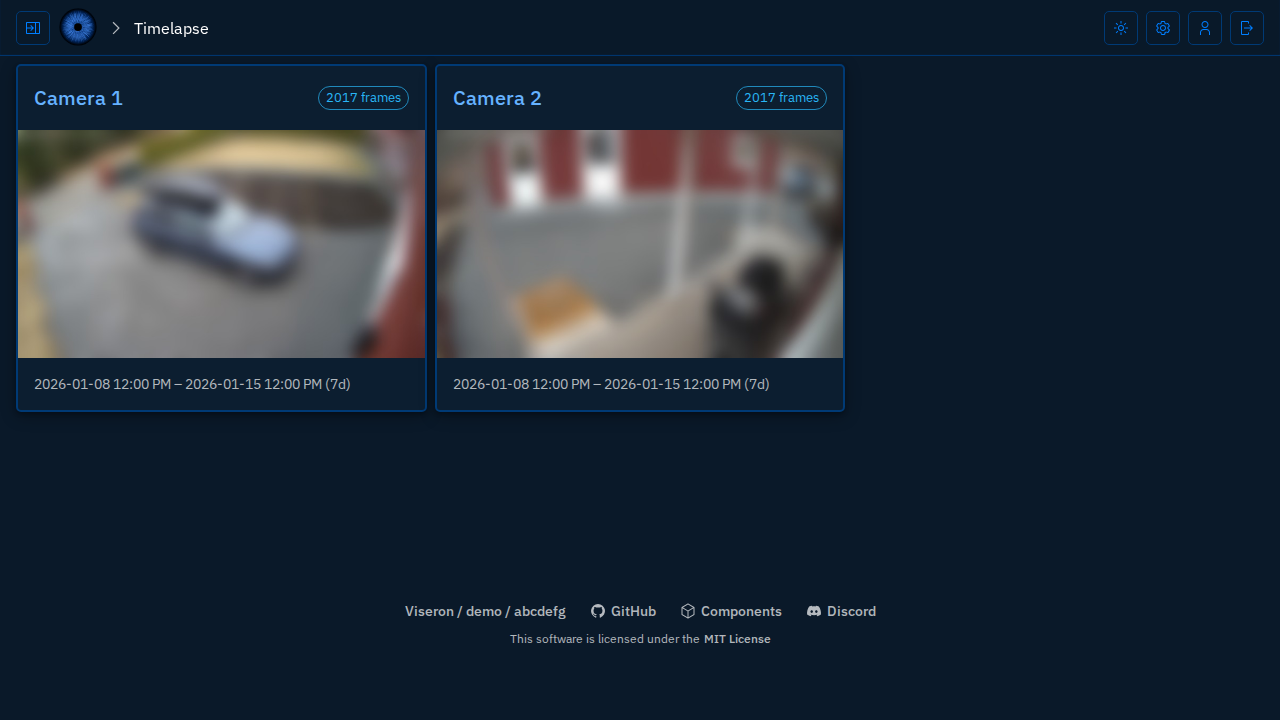
Clicking a camera opens its timelapse player.
Pick a time range with from the presets or enter a Custom range, or pick a day in the calendar, where days with frames are highlighted.
The selected range is part of the URL, so it can be bookmarked or shared.
A range that ends now is updated as new frames are saved.
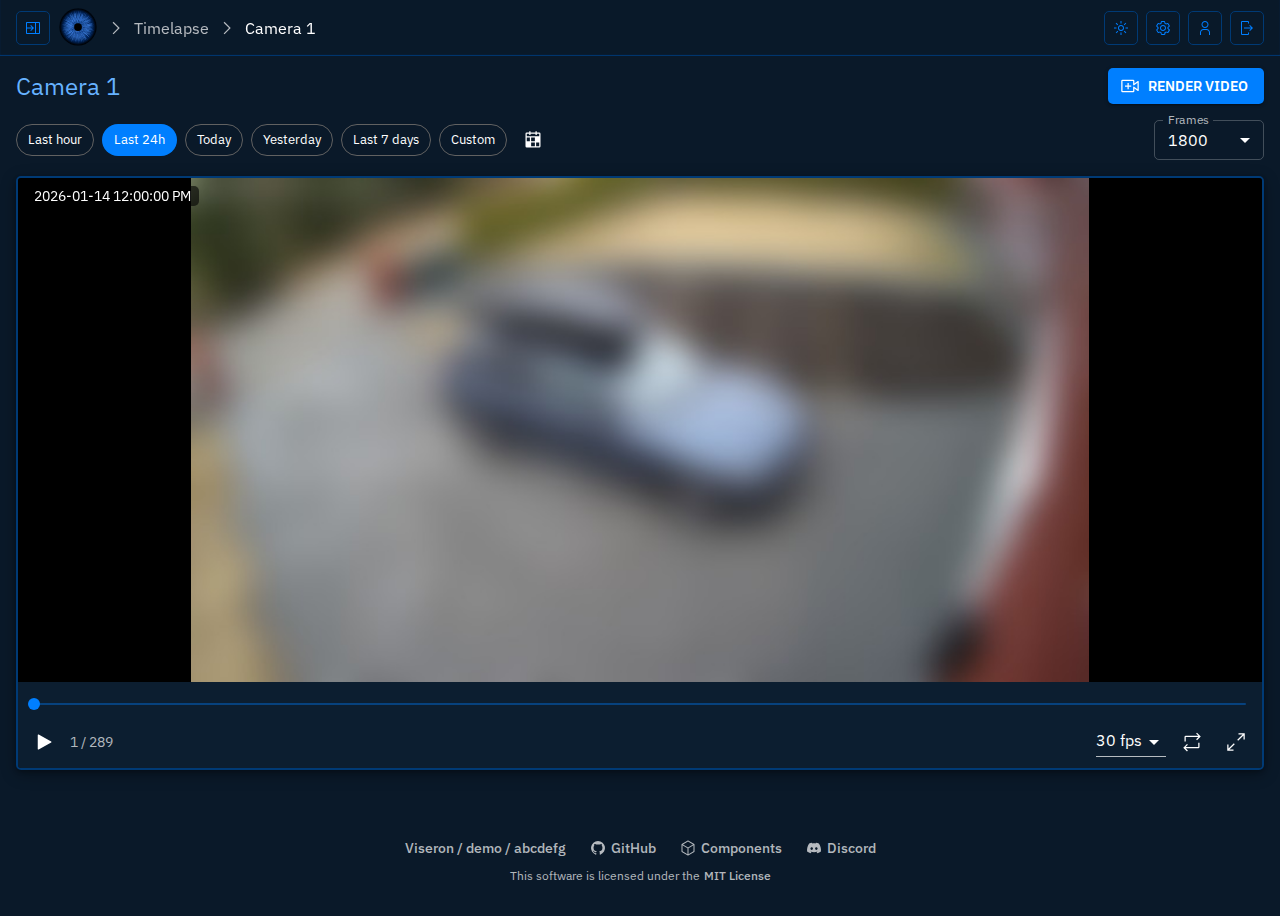
Long ranges contain more frames than can be played at once, so the frames are evenly thinned out to at most the number selected in Frames.
The server encodes the selected frames to video in short segments as they are played, and keeps recently played pieces for a while so that watching a range again is instant.
Encoding uses the CPU of the Viseron server, so a slow machine may pause briefly at the highest playback speeds.
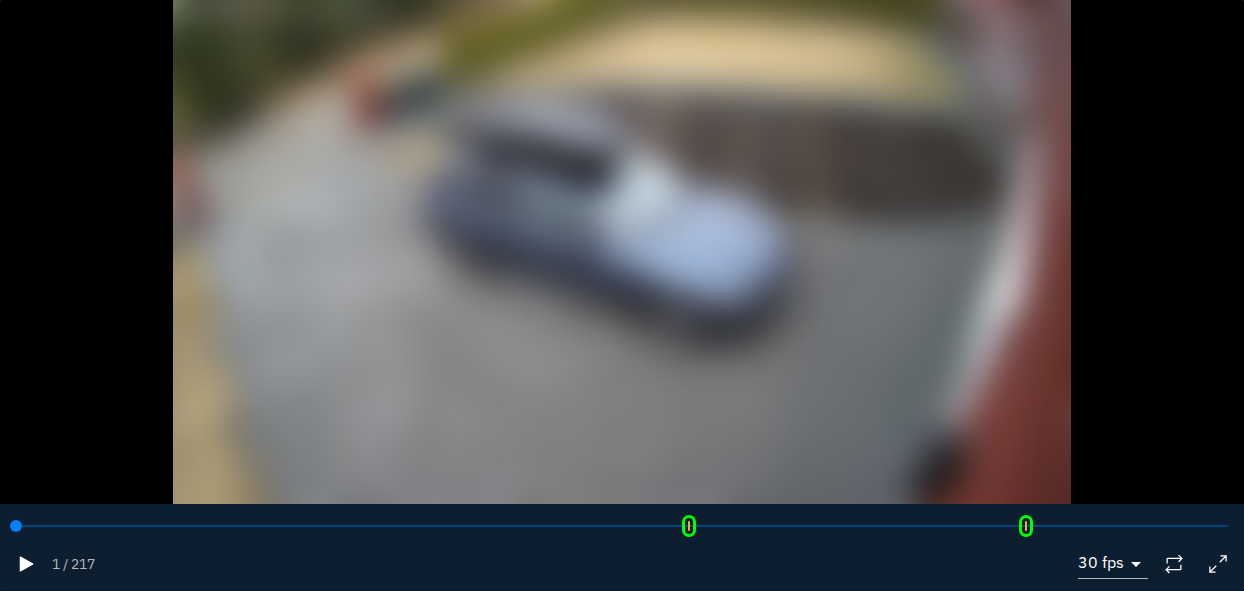
Markers on the timeline show gaps where no frames were saved, for example when the camera was offline.
Gap markers (highlighted in green)
Rendering a video
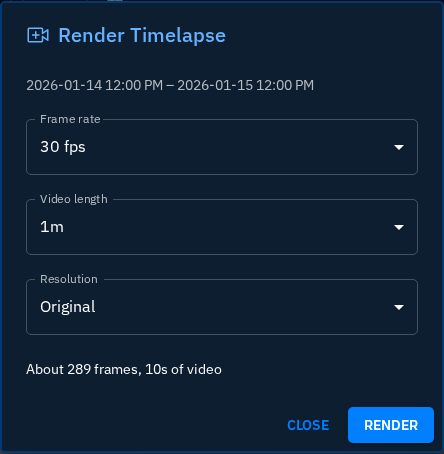
Click Render Video to create an MP4 of the selected range.
Choose the frame rate, the length of the video and the resolution.
The length decides how many frames are used, so a 60 second video at 30 fps uses 1800 frames spread evenly over the range.
The video is rendered on the server and downloaded by the browser when it is done.
Rendering reuses the pieces encoded for playback, so rendering a range you just watched, at the same number of frames and at 720p, is much faster.
While it renders you can cancel it, or click Hide to follow the progress in a notification and keep using Viseron.
Rendered videos are not stored by Viseron.
These limits keep a render from using too many resources:
- A video can use at most 18 000 frames.
- At most 2 videos are rendered at the same time. Additional renders wait in a queue.
- A render is stopped if it takes longer than 30 minutes.