Edit configuration
To edit or change your config.yaml, you can either access the file directly on your system, use the built in Configuration Editor in the Viseron frontend, or use the Camera Tuning page to edit specific camera settings.
Configuration Editor
The Configuration Editor is a convenient way to make changes to your configuration without having to access the file system.
You access the editor from the sidebar by clicking on Settings > Configuration
Configuration Editor screenshot
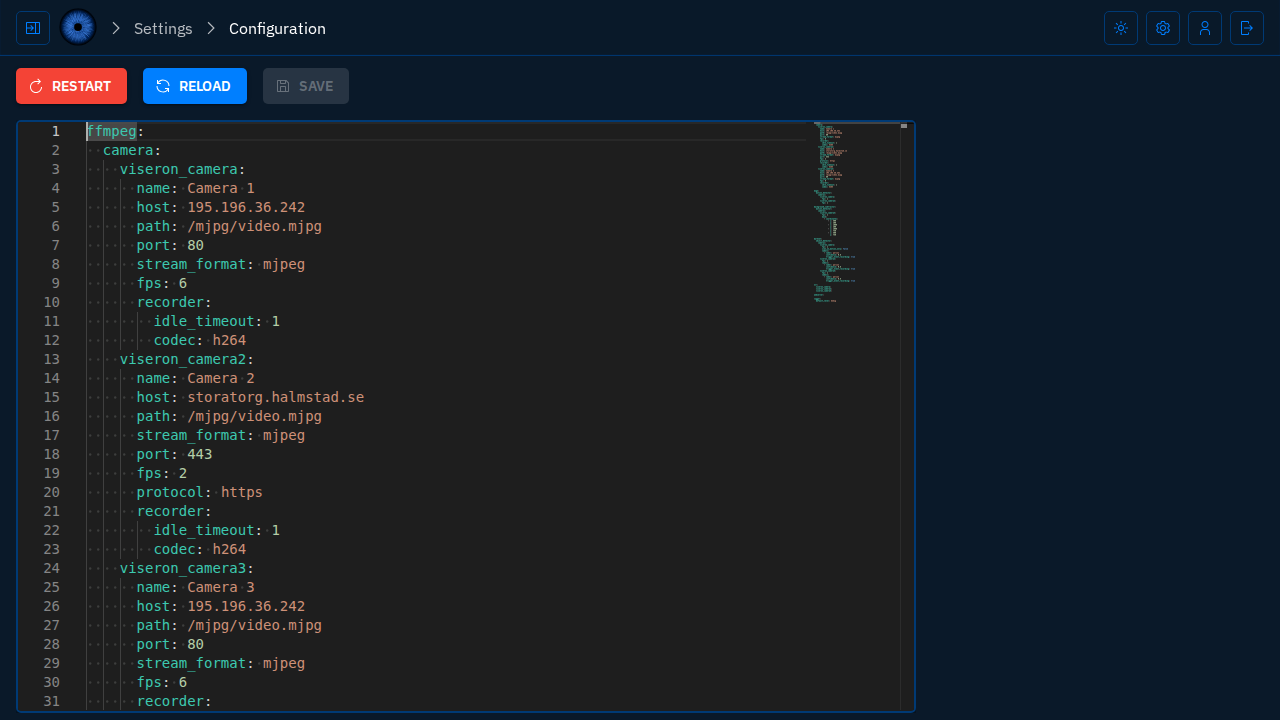
The built in Configuration Editor has syntax highlighting, making your YAML endeavors a bit easier.
YAML syntax error highlight
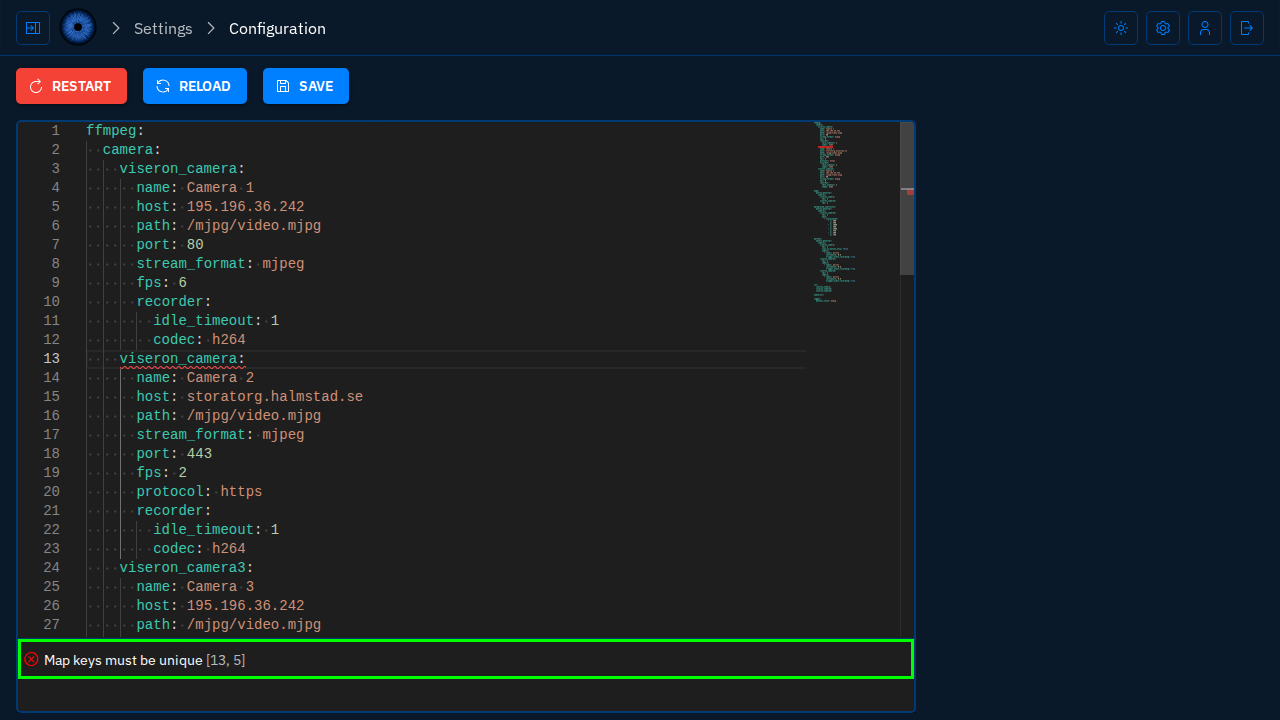
Camera Tuning
The Camera Tuning page allows you to edit specific settings for each camera, drawing masks, and more. This is a great way to quickly adjust camera settings without having to navigate through the entire configuration file.
This is an experimental feature and is not fully fleshed out yet. Not all settings are available to edit here, but the long-term goal is to have all camera settings available for easy tuning.
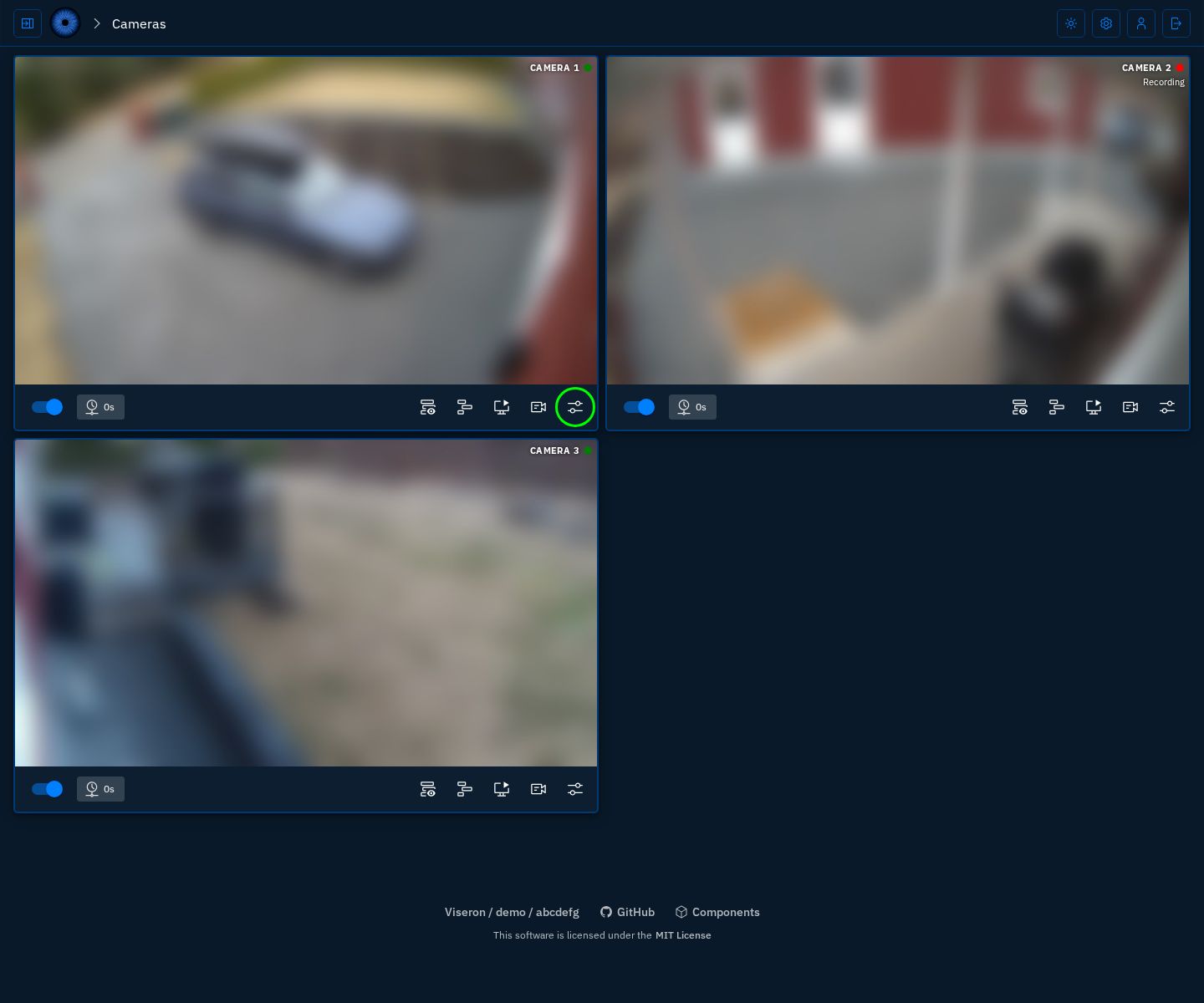
You access tuning by clicking on the Camera Tuning button on a camera card on the main page.
Camera Tuning button (highlighted in green)
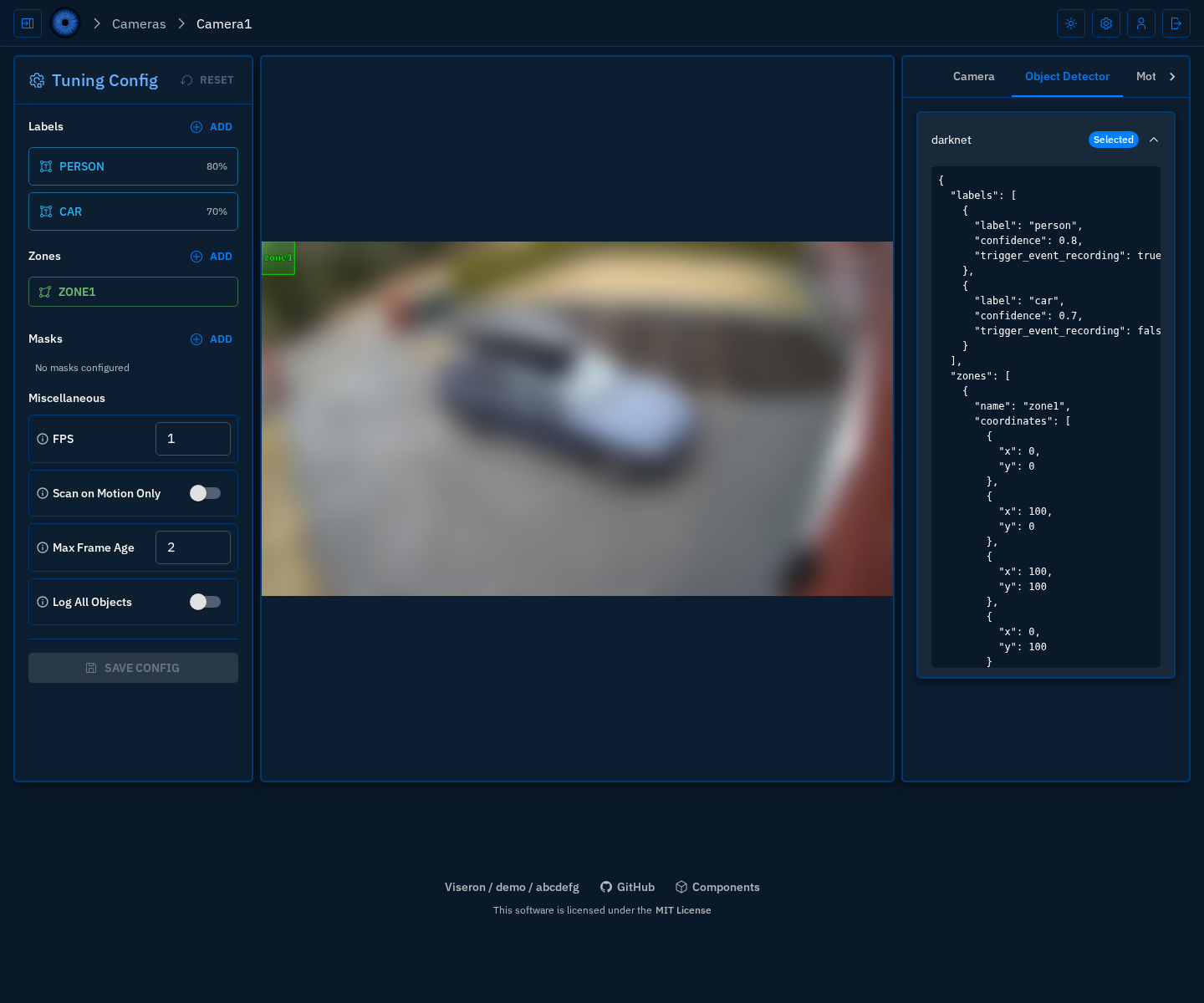
Note that you still need to reload the config or restart Viseron after changing the settings for the changes to take effect.
Reloading config without restarting
Viseron supports hot reloading of the configuration without having to restart the container.
Viseron will detect what components/domains have changed in the configuration and will only reload what is necessary, making the reload process faster and more efficient.
For instance, if you change the settings for a camera, only that camera (and any dependent domains like an object detector or nvr) will be reloaded and not the entire system. This means less downtime and less disruption to your system.
Reloading from the frontend
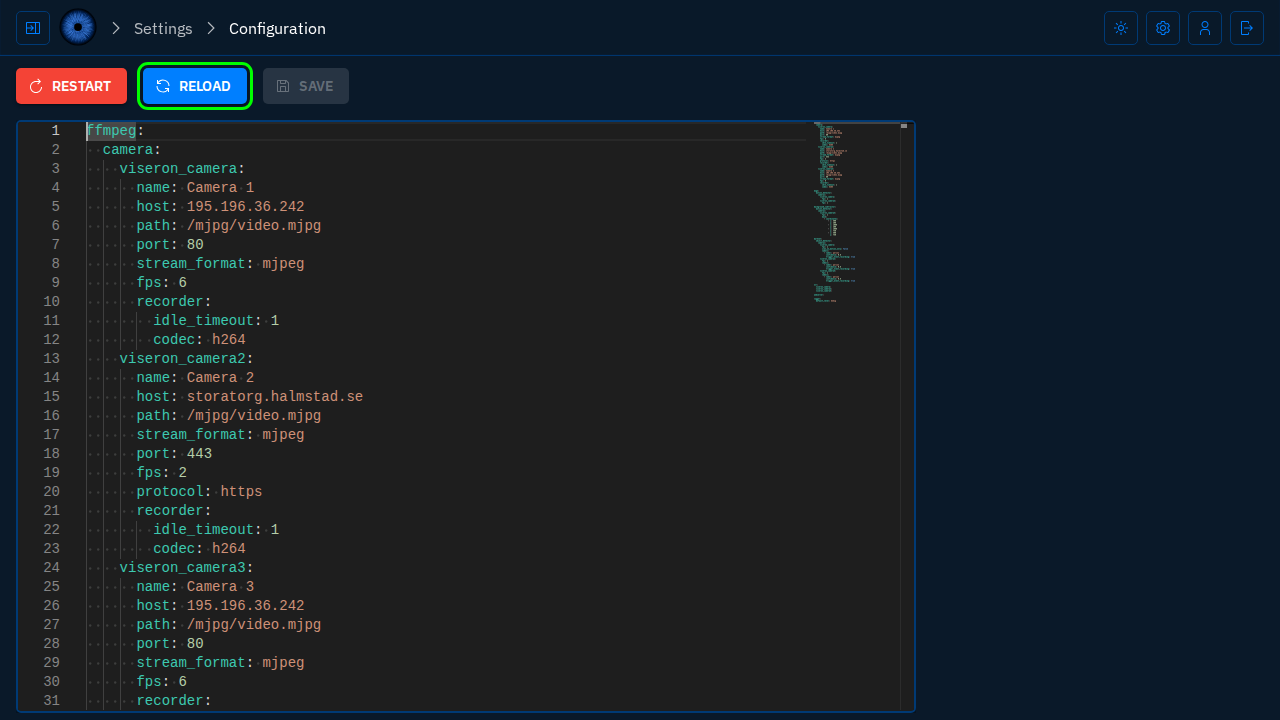
A config reload can be triggered by clicking the Reload Config button in the Configuration Editor.
Reload Config button (highlighted in green)
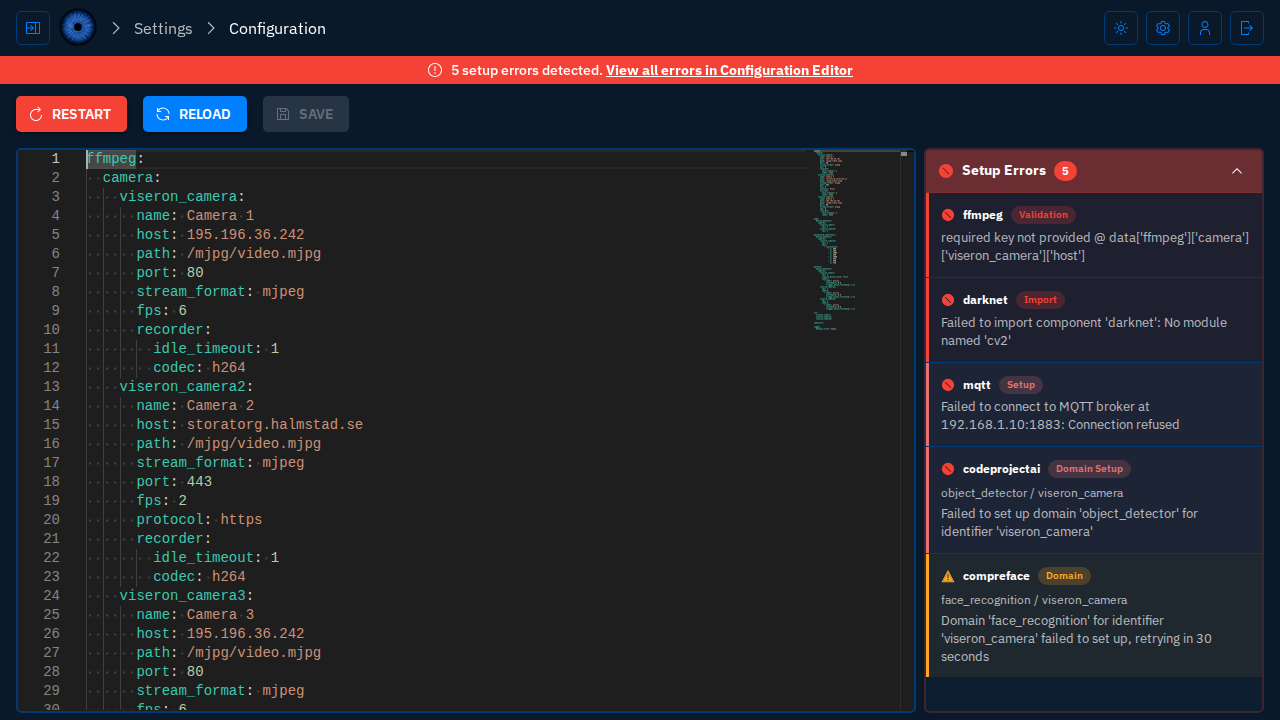
Potential errors will be presented in a sidebar next to the editor.
Errors sidebar
Reloading from the command line
The config can also be reloaded from the command line by using the command:
docker exec -it viseron viseron --reload
The --reload command sends SIGHUP to all running viseron processes in the container.