Set up Development Environment
This section will explain how to set up a development environment for Viseron.
Developing in a VSCode Dev Container
The easiest way to get started with development is to use the VSCode Dev Container. This will set up a development environment with all the tools you need to build and test the project.
The Dev Container contains everything you need to develop the Python backend, the React frontend and the Docusaurus documentation.
Prerequisites
Getting started
- Go to the Viseron repository and click
fork. - Once the fork is created, clone your fork to your local machine.
- Open the folder of the cloned repository in Visual Studio Code.
- You should see a popup in the bottom right corner asking if you want to reopen the folder in a Dev Container, click
Reopen in Container.
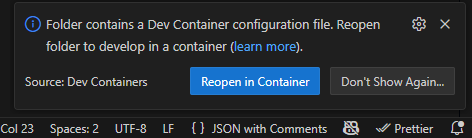
- If you do not see the popup, you can also open the command palette (
Ctrl+Shift+P), typeDev Containers: Reopen in Containerand select it. - Visual Studio Code will now build the Dev Container image and open the folder in the Dev Container. This may take a few minutes the first time, as it needs to download and install all the dependencies.
Old instructions using a clone in a Docker volume
- Go to the Viseron repository and click
fork. - Once your fork is created, copy the URL of your fork and paste it below, then click
Open: - Your browser will prompt you if you want to use Visual Studio Code to open the link, click
Open Link. - When Visual Studio Code asks if you want to install the Remote extension, click
Install. - The Dev Container image will then be built (this may take a few minutes), after this your development environment will be ready.
In the future, if you want to get back to your development environment: open Visual Studio Code, click on the Remote Explorer button in the sidebar, select Containers at the top of the sidebar.
Note that using a Docker volume means that your code is stored in a Docker volume and not on your local filesystem. If you want to keep your code on your local filesystem, you should clone the repository manually and open it in a Dev Container as described in the main instructions above.
This section was taken from the Home Assistant documentation.
Tasks
There are a lot of useful tasks in the Dev Container that can be run from the command palette (Ctrl+Shift+P > Tasks: Run Task) in VSCode.
Some of the tasks that are available:
- Run build, test and lint the backend and frontend
- Run, build and lint the docs
Debugging in VSCode
The Dev Container also contains a launch configuration for debugging the Python backend in VSCode.
If you go to the Run and Debug (Ctrl+Shift+D) tab in VSCode, you can select Viseron from the dropdown and click Start Debugging to start debugging the backend.
There are also launch configurations for debugging the frontend.
Frontend: Debuglaunches a Chrome instance that can be used for debugging.Frontend: Debug current Test Fileruns the current Vitest file in debug mode.
Manual Environment
Setting up a manual environment without using the Dev Container is not something I recommend due to the large number of dependencies and tools that are required.
If you still want to set up a manual environment, you can follow the steps below.
I do not use this method myself, so I cannot guarantee that it will work and I will not provide support for it.
- Install the dependencies:
pip3 install -r requirements.txt -r requirements_test.txt -r requirements_test.txt. It might be wise to do this in avirtualenvbut this is up to you. - Install
docker - Install
docker-compose - Install
tox - Install
nodejs - Install
npm - Run
pre-commit installto install thepre-commithooks
Using tox
tox is the main tool used for linting and testing your code when not using the Dev Container.
Simply running the command tox will run all checks. You can single out a specific check by supplying the -e flag.
For example:
- Run pylint only:
tox -e pylint - Run pytest only:
tox -e pytest
A note on pytest
Viseron requires a lot of dependencies.
To make testing with pytest as easy as possible, tox will build and run a Docker container which executes pytest.
If you would like to run tests outside of tox you can build and run this container manually:
docker compose --file azure-pipelines/docker-compose-build.yaml --env-file azure-pipelines/.env build amd64-viseron-tests
docker compose --file azure-pipelines/docker-compose-build.yaml --env-file azure-pipelines/.env run --rm amd64-viseron-tests